# Microsoft Exchange e-mail instellen in Outlook
1. Outlook (2013 of hoger)
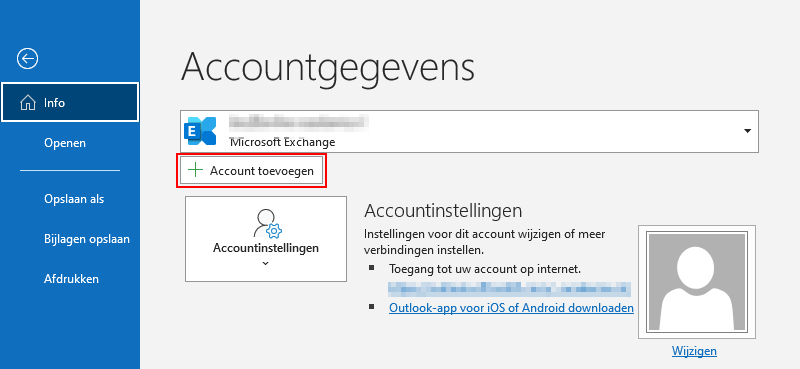
Nadat u het programma hebt geopend klikt u links bovenin op bestand, vervolgens krijgt u onderstaande scherm te zien. Kies voor account toevoegen.
[](https://helpdesk.zicht-ict.nl/uploads/images/gallery/2021-11/image-1636376032730.png)
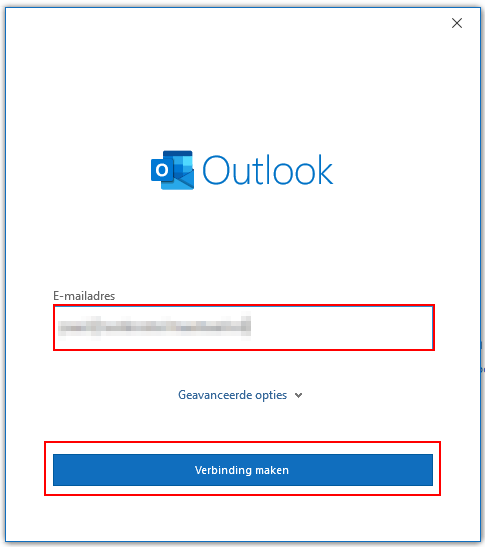
In het venster wat dan verschijnt vult u uw e-mailadres in en klikt vervolgens op verbinding maken.
[](https://helpdesk.zicht-ict.nl/uploads/images/gallery/2021-11/image-1636376054275.png)
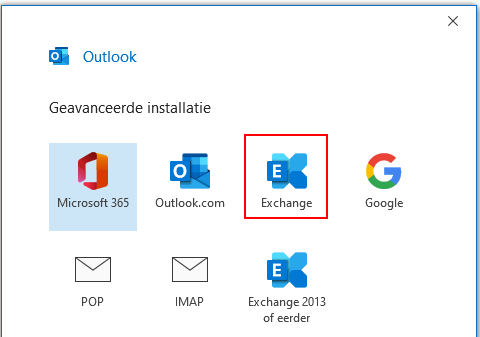
Nu gaat Outlook de juiste instellingen ophalen en zal vervolgens vragen om wat voor type account het gaat.
We kiezen hier Exchange.
[](https://helpdesk.zicht-ict.nl/uploads/images/gallery/2021-11/image-1636376098657.png)
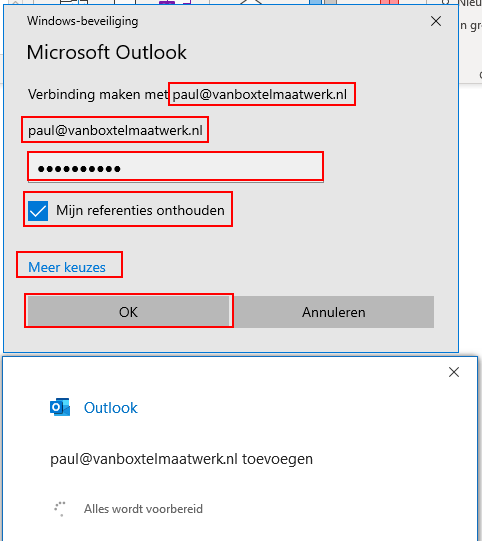
In het venster wat vervolgens getoond wordt is het belangrijk dat overal uw eigen (nieuwe) e-mailadres staat.
[](https://helpdesk.zicht-ict.nl/uploads/images/gallery/2021-11/image-1636376122136.png)
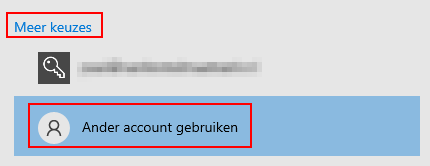
Als dat niet zo is, kies dan voor meer keuzes ->
[](https://helpdesk.zicht-ict.nl/uploads/images/gallery/2021-11/image-1636376137625.png)
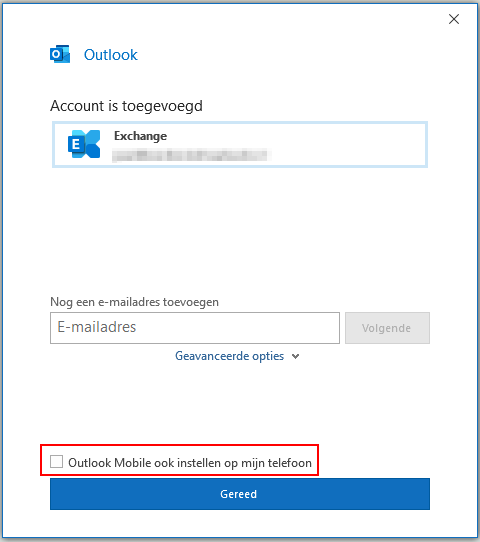
Als laatste zal Outlook vragen of u hulp wenst bij het instellen van Outlook Mobile, op mobiele apparaten kan gevraagd worden om een server naam, dit is exchange.filteryour.email
[](https://helpdesk.zicht-ict.nl/uploads/images/gallery/2021-11/image-1636376153000.png)
Druk op gereed en Outlook zal aangeven of u het programma nog opnieuw dient te openen voordat de wijzigingen van kracht worden.
2. Outlook (voor 2013)
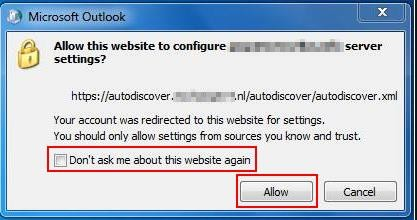
Er zijn Outlook versies welke nog een extra toestemming vragen, dat venster ziet er dan ongeveer als volgt uit.
[](https://helpdesk.zicht-ict.nl/uploads/images/gallery/2021-11/image-1636376219844.png)
Vink ‘niet opnieuw vragen’ aan en kies voor toestaan.